
MainWP Clone Extension
Start new sites from a template by copying a child site onto a fresh site connected to your MainWP Dashboard.

Copy a finished child site onto a fresh WordPress install
The MainWP Clone Extension is a Pro MainWP add-on that lets you start new sites from a template by copying one child site onto another site connected to your MainWP Dashboard. The copy includes the site configuration, themes and theme settings, plugins and plugin settings, posts, pages, images and videos.
Starting a new site from one you already built
A new site based on one you already built usually means setting up its theme, plugins, settings and content again by hand, or paying for a migration service. The MainWP Clone Extension copies the finished site instead: you install a fresh WordPress site, connect it to MainWP, and pick the site to copy. During the clone, source-site URLs are replaced with the destination site’s URLs.
Features
The MainWP Clone Extension offers two ways to clone, depending on site size, and lets you decide which sites can be cloned.
| Feature | What it means for you |
|---|---|
| Quick Clone | Clone one child site to another by selecting the source site. Recommended for sites up to 256MB. |
| Clone from Backup | For sites over 256MB, upload a full MainWP Legacy Backups file of the source site to the destination server and restore it there. |
| Full site copy | Site configuration, themes, theme settings, plugins, plugin settings, posts, pages, images and videos come across to the new site. |
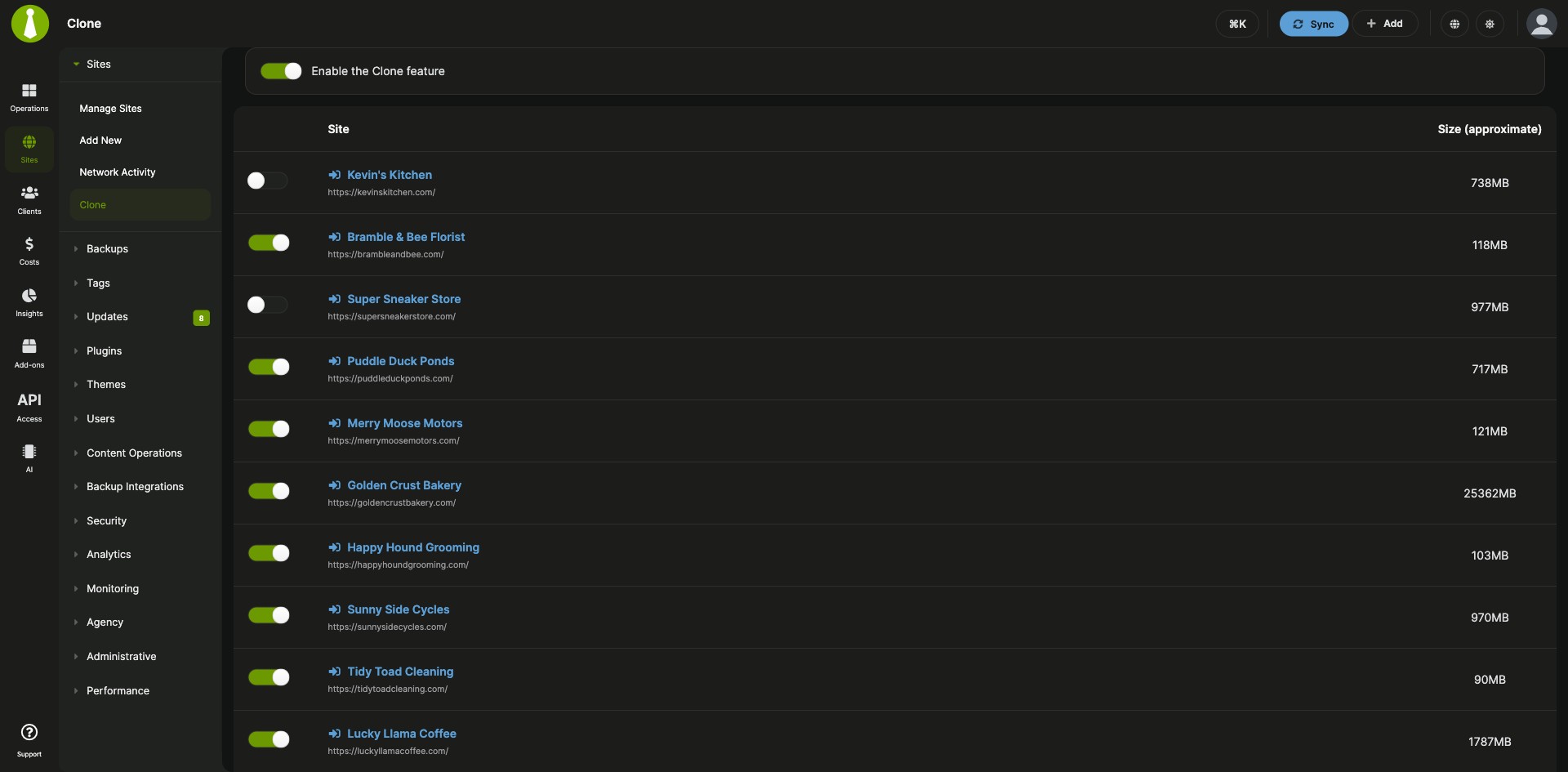
| Clone on or off for all sites | Turn the Clone feature on or off for your whole Dashboard from one toggle on the Sites > Clone page. |
| Per-site participation | Choose which sites take part with a toggle for each site, or use Allow All and Disallow All, then click Save Selection. |
| Checked settings saves | Version 5.1 checks the whole site selection before saving and saves it when every part checks out. If another edit changed the settings after the page loaded, the page asks you to reload and submit again. |
| WordPress Abilities API | Version 5.1 adds three abilities: mainwp/get-site-clone-policy-status-v1 reads one site’s stored Clone policy, mainwp/set-clone-enabled-v1 turns Clone on or off, and mainwp/set-site-clone-participation-v1 allows or disallows one site. |
Requirements
The MainWP Clone Extension sits on your MainWP Dashboard, and both the source and the destination site need the MainWP Child plugin.
| Item | Requirement |
|---|---|
| License | MainWP Pro |
| Source site | A child site connected to your MainWP Dashboard |
| Destination site | A fresh WordPress install with the MainWP Child plugin, connected to your MainWP Dashboard |
| Server | Both sites meet the MainWP System Requirements, and the source and destination sites can connect to each other |
| Clone from Backup | MainWP Legacy Backups enabled and set as the primary backup solution, and FTP access to the destination server |
| Abilities API (optional) | WordPress 6.9 or later on your Dashboard site, a MainWP Dashboard version with Abilities API support, Clone 5.1 or later, and a user with the manage_options capability |
Setup: prepare the destination, then clone
A clone with the MainWP Clone Extension starts on your Dashboard and finishes on the destination site, with a backup route for larger sites.
Prepare the destination site
- Install a new WordPress site.
- Install the MainWP Child plugin on it.
- Connect the new site to your MainWP Dashboard.
Turn on Clone and choose the sites
- In your MainWP Dashboard, go to Sites > Clone.
- Turn on Enable the Clone feature. This toggle saves on its own, so check the save message before you continue.
- Use each site’s toggle, or Allow All and Disallow All, then click Save Selection.
- Sync your sites. Clone settings reach a child site after its next successful sync.
Run a Quick Clone
- Log in to the destination site’s WP Admin.
- Go to Settings > MainWP Child > Restore / Clone.
- In the Select Source for clone box, select the child site you want to copy.
- Click Clone website.
- When the clone finishes, log in again with the source site’s credentials and resave your permalink settings.
Clone a larger site from a backup
- Make sure MainWP Legacy Backups is enabled and set as the primary backup solution under MainWP Settings > General Settings. You can switch it back after the clone.
- Go to Sites > Manage Sites, find the source site, click Backup Now, create a full backup, and download the file.
- Upload the backup file to the destination site’s server with an FTP client.
- On the destination site, go to Settings > MainWP Child > Restore / Clone, find the Option 2: Restore/Clone From Server box, select the file, and click Clone/Restore Website.
- When the clone finishes, log in again with the source site’s credentials and resave your permalink settings.
Full instructions and troubleshooting: MainWP Clone Extension documentation.
Where the clone runs
The MainWP Clone Extension keeps its settings on your MainWP Dashboard, where you turn Clone on and choose which sites take part. The clone itself runs from the MainWP Child plugin on the destination site, which copies the source child site onto it. Clone settings reach each child site on its next successful sync.
Clone FAQ
Should I use Quick Clone or Clone from Backup?
The MainWP Clone Extension recommends Quick Clone for sites up to 256MB and Clone from Backup for larger sites, which restores a full MainWP Legacy Backups file uploaded to the destination server. Quick Clone depends on server resources and the connection between the two sites, so check that both sites meet the MainWP System Requirements and can connect to each other.
Does the destination site have to be a new WordPress install?
Yes, the MainWP Clone Extension copies the source site onto a fresh WordPress site that is already installed, has MainWP Child, and is connected to your MainWP Dashboard. Set up that fresh site first, then start the clone from it.
What should I check after a clone finishes?
After a clone with the MainWP Clone Extension, log in with the source site’s credentials, resave your permalink settings, and check plugin and theme settings for links to the source site. From MainWP Child 6.2.2, a stored value with PHP objects, or one too large or complex to decode safely, keeps its source-site URLs, so update those settings on the destination site. If the destination redirects to the source site, update the siteurl and home values in its wp_options table.